PaceLaps Race ControlEarly access · free
Make the call.
The whole field gets it.
Race control for iRacing leagues. Your stewards run flags, safety cars and penalties from a browser. Your drivers see every call on a phone, a second screen or the stream.
- Stewards
- Any browser, Discord sign-in
- Drivers
- No account, nothing to install
- In iRacing
- One Windows agent on a session admin's PC
- Flags
- iRacing's own caution and black flags
What you need
Stewards
- A Discord account
- Any browser: PC, tablet or phone
The session admin
- Windows 10 or 11 and iRacing
- iRacing session admin rights
- The PaceLaps agent. Run two or three if you can.
Drivers and streamers
- The join link, or your league id
- Any browser
- For overlays: OBS or any tool that shows a web page
A race night
- 1Before the raceRegister your league, invite your stewards, set up penalties and procedures, pair the agent. Once.
- 2On the gridDrivers open the join link and pick their car. Streamers add their overlay.
- 3In the raceStewards make the calls, run procedures, review contacts and hand out penalties.
- 4After the raceEvery decision is in the audit log, by car number. Share it with your drivers.
The agent
How it talks to iRacing
PaceLaps doesn't modify iRacing in any way. The agent runs on a session admin's PC and works like an admin at the keyboard.
The agent guide- Reads the session through iRacing's own SDK, like overlays and telemetry tools do.
- Types only what race control sends into the session chat: admin commands like a caution, the pit lane, pace laps or a black flag, and chat lines. Nothing else.
- Needs iRacing session admin rights, not Windows administrator rights.
- Stays in the background while you drive. iRacing comes to the front only for the self-test before the race and, rarely, to repeat a command that didn't arrive.
- Two settings on your side: iRacing in borderless windowed mode, and no chat macro or control on a plain key (a letter, digit, #, + or space).
Calls
Every screen, same moment
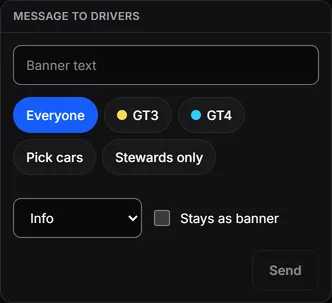
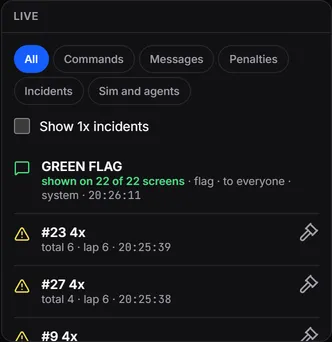
A call reaches every screen at the same moment, with a sound. Race control shows how many screens showed it.
- To everyone, a class, chosen cars or stewards only
- Flag, safety car, wave-around, penalty or information
- A banner that stays until it's withdrawn
Procedures
Your rulebook, built in
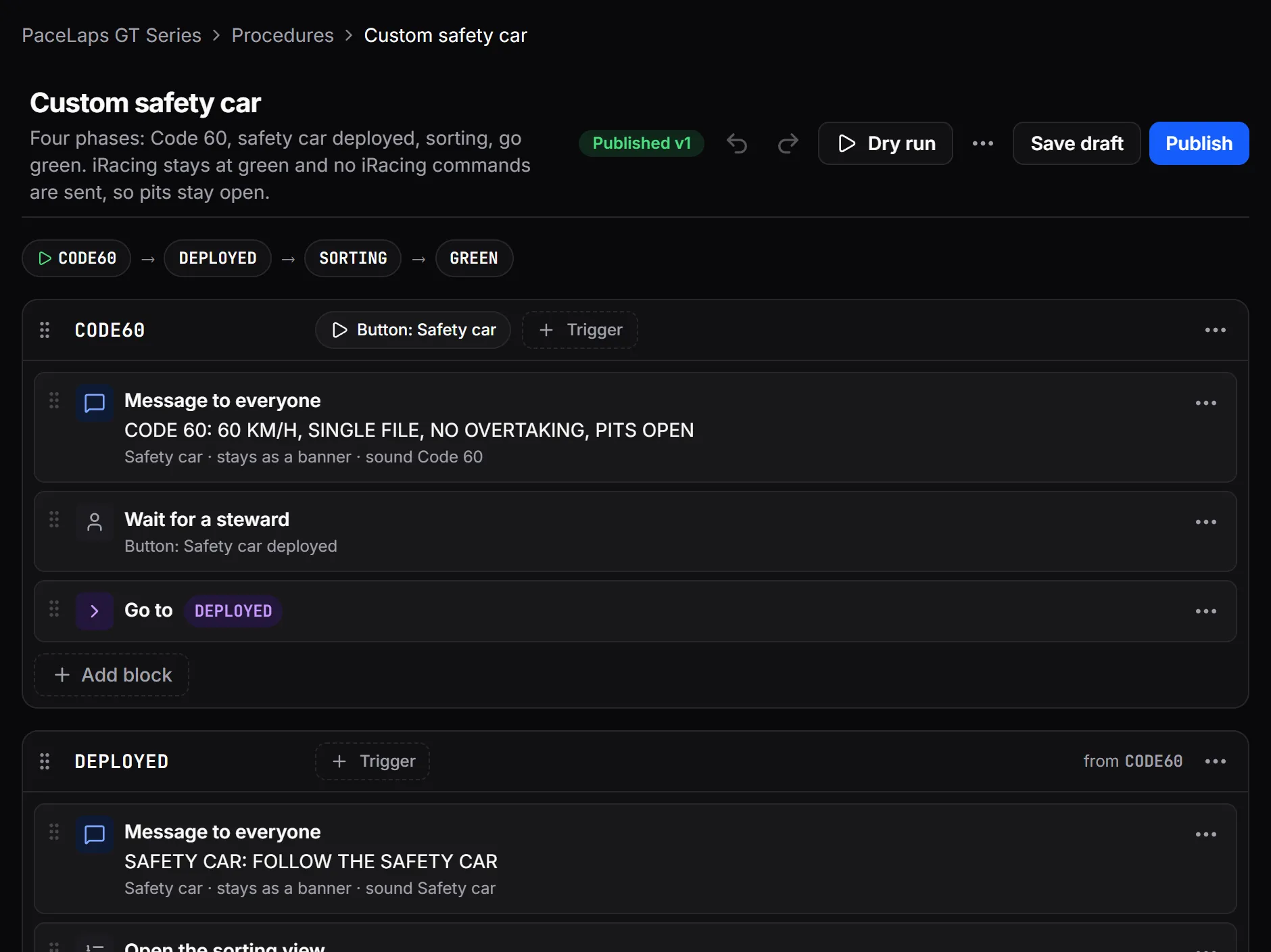
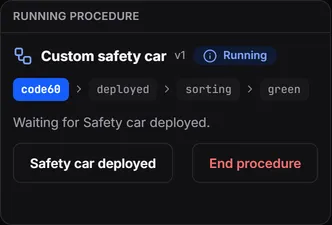
Turn the safety car from your regulations into steps. Start it with a button, and race control shows where it is and what it waits for.
- Messages, iRacing commands, chat lines, pits, waits, a steward's go, the sorting view, countdowns and branches
- Templates: iRacing's pace car caution, a custom safety car, a Code 60 failsafe
- The editor checks every procedure before it's published
Incidents and penalties
Every contact, a case
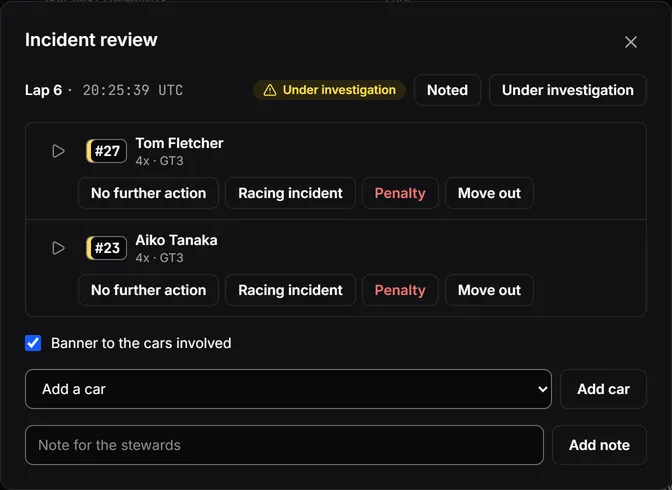
Contacts become cases. Replay them on your own sim, then decide: no further action, a racing incident, or a penalty from your catalog.
- Penalties use iRacing's own black flag, so Spotter and Crew Chief call them too
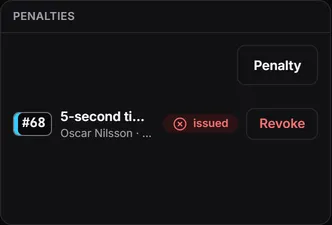
- Drive-through, stop and go, end of line, disqualify, remove, or seconds added to the race time
- The penalised driver sees what to do
Drivers and streamers
No more missed calls
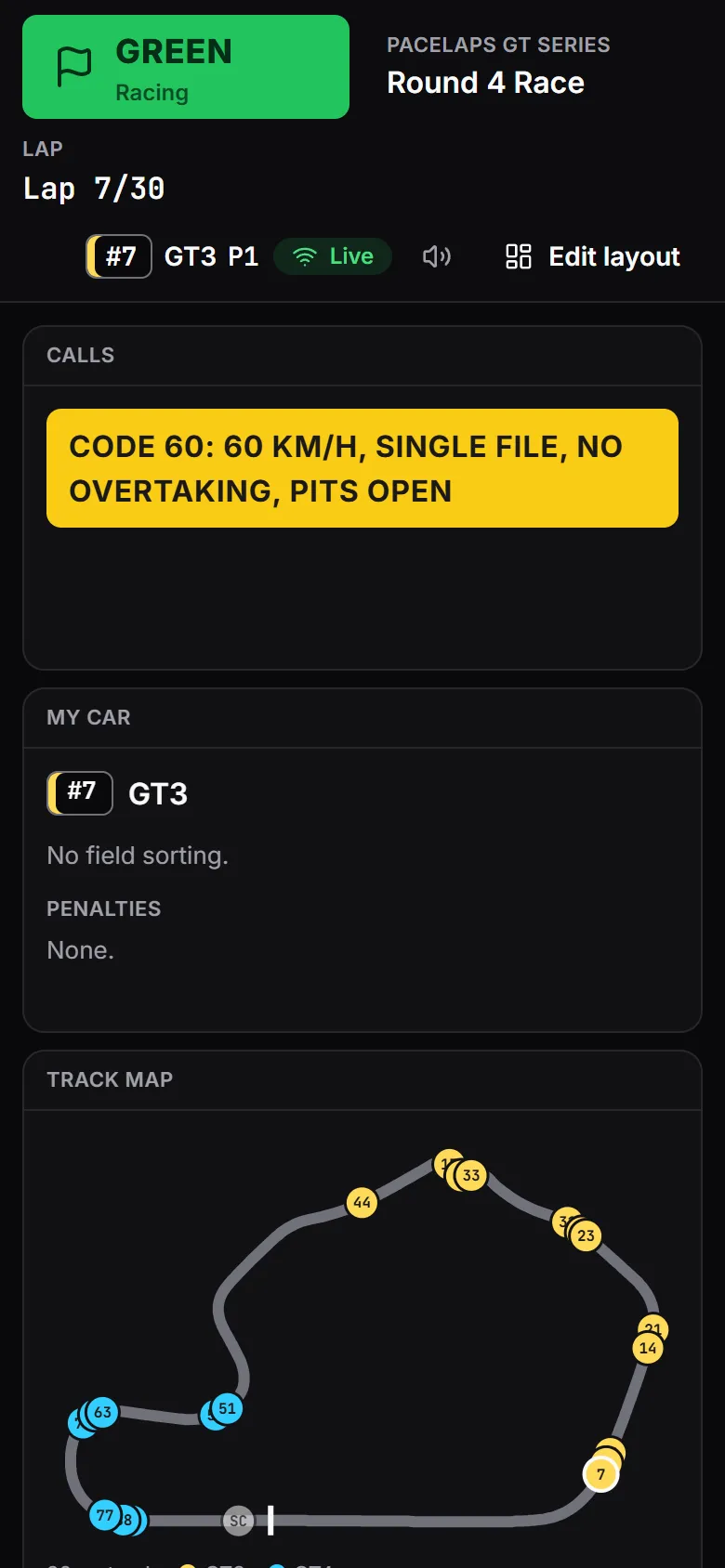
Every call as a banner with a sound, on whatever screen the driver has. Streamers put the same banner on stream.
- Join with a car number, an iRacing customer id, or as a spectator
- Their own penalties, with what to do
- The running order, the track map and lap times
- Overlays for OBS: the banner, the place behind the safety car, the audit log, the whole page
Banner overlay

When something fails
The race goes on
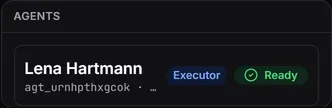
- An agent drops out: another one takes over, and your stewards are told.
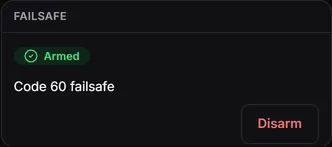
- No agent left: your failsafe procedure starts after a countdown your stewards can cancel.
- The server is out of reach: agents can run a local failsafe on their own.
- A screen loses its connection: it catches up when it's back.
After the race
Every decision on record
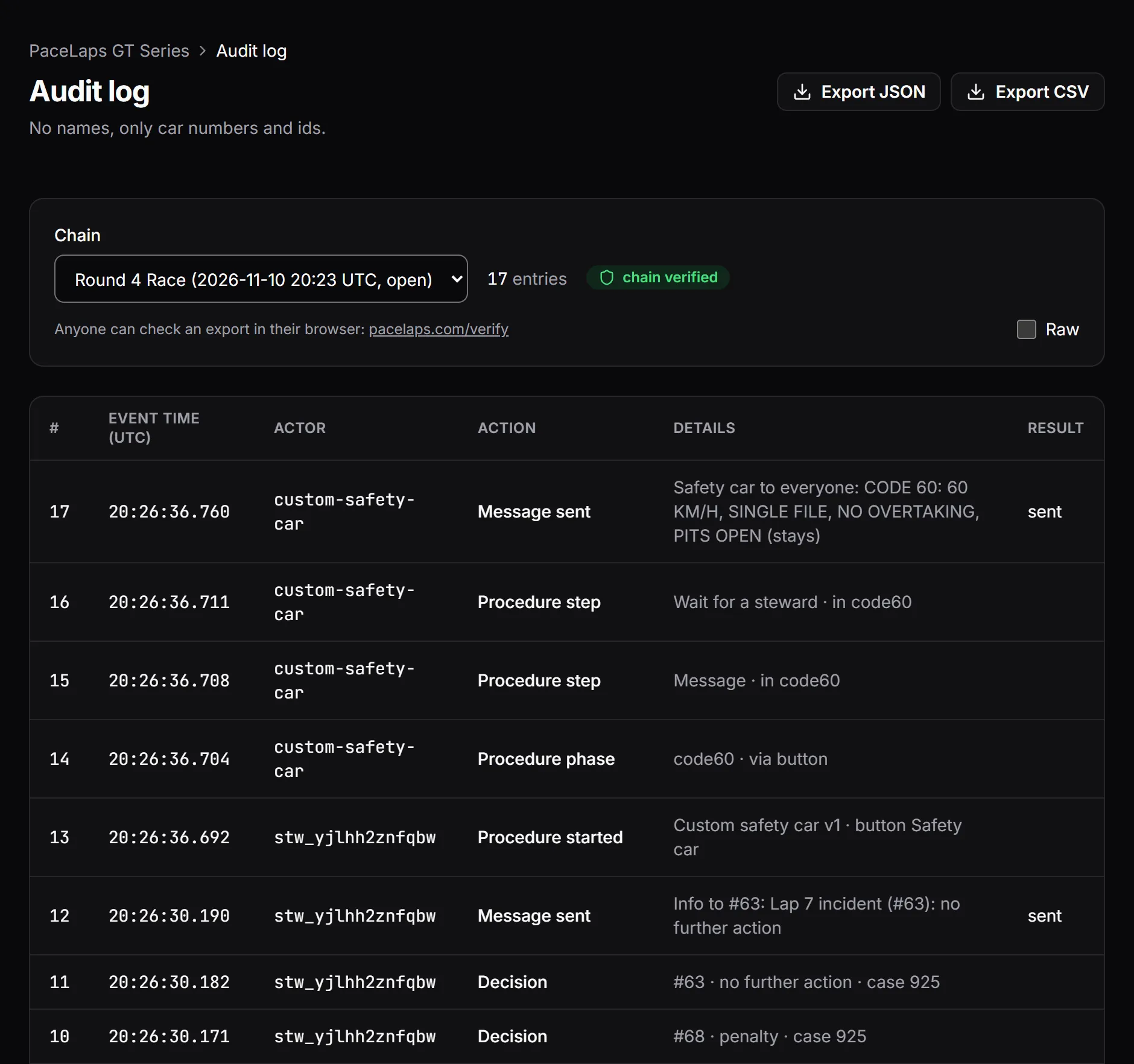
The audit log keeps every call and decision, by car number. Nobody can change it afterwards: each export carries a chain of checksums, and any change breaks it. Anyone can check an exported log in their browser.
- Drivers' screens and the audit log show car numbers, never names
- Stewards sign in with Discord. Race Control keeps only the id and the name.
- Public for your drivers, or for your stewards only
- Export it as JSON or CSV. Each session gets a results page with the penalties applied.
Questions
Cost and who we are
What does it cost?
Nothing while in early access. Later there will be plans for different league sizes, announced well before they apply.
Who runs PaceLaps?
PaceLaps is made by Christopher Monje in Germany. For help, write to support@pacelaps.com.
Setting up
How long does setup take?
The basics take minutes: register your league, pair the agent, open a session. For a big event, set up your procedures and rehearse in a private session days before.
Does it work in hosted sessions?
Yes. For a league session, Race Control opens the session itself as soon as an activated agent of one of your stewards is in it. For a hosted session, a steward opens it first with New session, and the agents join it.
Who can register my league?
Each iRacing league id can be registered once. Please only register leagues you run. If someone registered yours, write to support@pacelaps.com.
Does the agent need iRacing session admin rights?
Yes, to send commands. Without them it is view only: stewards can still play incident replays on it.
Does it need Windows administrator rights?
No. The agent runs as a normal Windows program. Only if you start iRacing as administrator, start the agent that way too: Windows doesn’t let a normal program type into one running as administrator.
What if only one admin can run the agent?
It works. Calls to drivers need no agent at all; everything to and from iRacing does, like the running order, incidents, cautions and black flags. If your only agent drops out, your failsafe procedure starts after a countdown. A second agent on another admin’s PC removes that risk.
What does a driver need?
A browser and the join link. No account, nothing to install.
How much mobile data does the driver page use?
Up to about 10 MB in a 60-minute race with a full field.
Does it work for team races with driver swaps?
Partly. Calls and penalties go to a car, so every driver of the team sees them: each one joins with the car number. Driver swaps haven’t been tested in a real team race yet, and an incident count can come out wrong right after a swap.
Is it available in other languages?
Not yet. Race Control and the driver page are in English.
In the race
Does PaceLaps modify iRacing?
No. The agent reads the session through iRacing’s SDK, like overlays and telemetry tools, and types the admin commands iRacing gives session admins. iRacing’s terms and your league’s rules apply as always.
Will it take focus while I’m driving?
Only for the self-test before the race and, rarely, to repeat a command that didn’t arrive. Everything else happens in the background.
Which iRacing commands does it send?
Caution and restarts, pit lane open or closed, pace laps, black flags and clearing them, wave-bys, end of line, disqualify and remove, and chat lines. Only the ones your league allows.
What if the agent’s PC crashes?
Another agent takes over. With none left, your failsafe procedure starts after a countdown your stewards can cancel.
How many drivers can join?
A full grid. We tested 60 screens per race, with ten races at once: every screen showed each call within 100 ms of the others.
After the race
Where do time penalties end up?
On the session’s results page in Race Control, with the penalties applied, and in the audit log. Stewards mark the results final, export them as CSV and print a report. iRacing’s own results don’t change.
Can stewards review incidents after the race?
Yes. While the session runs, stewards decide each case in race control. Afterwards, the session’s incidents page takes the cases still open, with time penalties that change the results.
Can drivers check that nobody changed the audit log?
Yes. Drivers download the log from their driver page, stewards export it from Race Control. Anyone can then check the file in their browser on pacelaps.com/verify.
Can I track penalty points over a season?
Not yet.
Can I take my data with me, or delete it?
You can export the penalty catalog and your procedures as JSON, and the audit log as JSON or CSV. On Your leagues, Download my data gives you everything about your account and Delete my account removes it. League admins delete a league on its Settings page, after downloading its whole audit log.
Ready before your next race
Register your league, connect an agent and send your drivers the link.