Docs / Race Control
The agent
Install, pair and run the PaceLaps agent on a session admin's PC, and what to do when something is wrong.
The agent runs on an iRacing session admin’s PC and types race control’s commands into the iRacing chat. While it sleeps, it doesn’t talk to Race Control.
How it works. The agent types race control’s commands into the iRacing chat, as an admin would. iRacing comes to the front only for the self-test and, rarely, to repeat a command that didn’t arrive. PaceLaps doesn’t modify iRacing: the agent reads the session through iRacing’s SDK, like overlays do.
You need Windows 10 or 11 (64-bit), iRacing, iRacing session admin rights and a steward account for the league.
Install
- Download the agent and unzip the folder anywhere, for example to
Documents\PaceLaps. - Start
pacelaps-agent.exe. If Windows says “Windows protected your PC”, click More info, then Run anyway: the program isn’t signed yet. To check the zip, runGet-FileHash <zip> -Algorithm SHA256in PowerShell and compare it with the release’s.sha256file. - The first time, its window opens with three steps. Afterwards it lives next to the clock (maybe under the ^ arrow); click the icon to open the window again. The badge on the icon shows the state:
| Badge | State |
|---|---|
| Grey | Sleeping |
| Blue | Self-test running |
| Amber | Ready, no session yet |
| Green | In a session |
| Red | A problem: open the window |
The agent needs no Windows administrator rights. Only if you start iRacing as administrator, start the agent that way too: Windows doesn’t let a normal program type into one running as administrator.
Pair (once per PC)
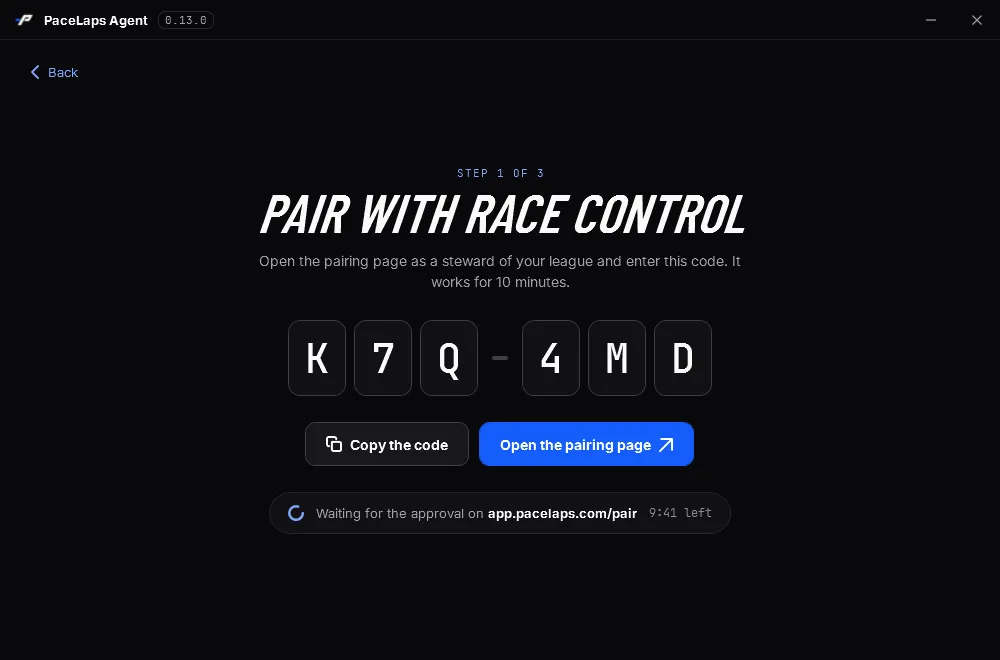
- In the window, Pair (or on the status screen, Pair with Race Control).
- The agent shows a code. Open the pairing page, sign in as a steward and enter the code.
- Once a steward approves it, the window says so and shows the status.
In a session
- Join the session in iRacing as an admin.
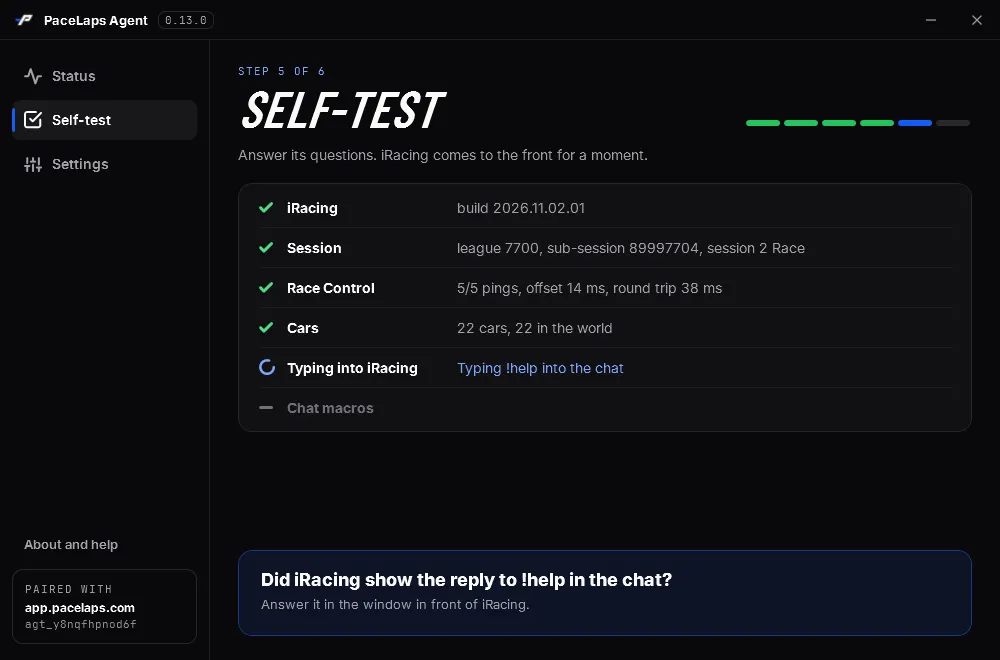
- Activate, in the window or the icon’s menu. The self-test runs step by step. It types
!helpand asks, in a window in front of iRacing, whether the reply appeared. - Green: you’re in. If this agent sends the commands, a notification says so. You can drive; iRacing only comes to the front for the self-test and the rare retry. Use borderless windowed mode, and no chat macro or control on a plain key (letter, digit, #, + or space).
- After the session: Sleep.
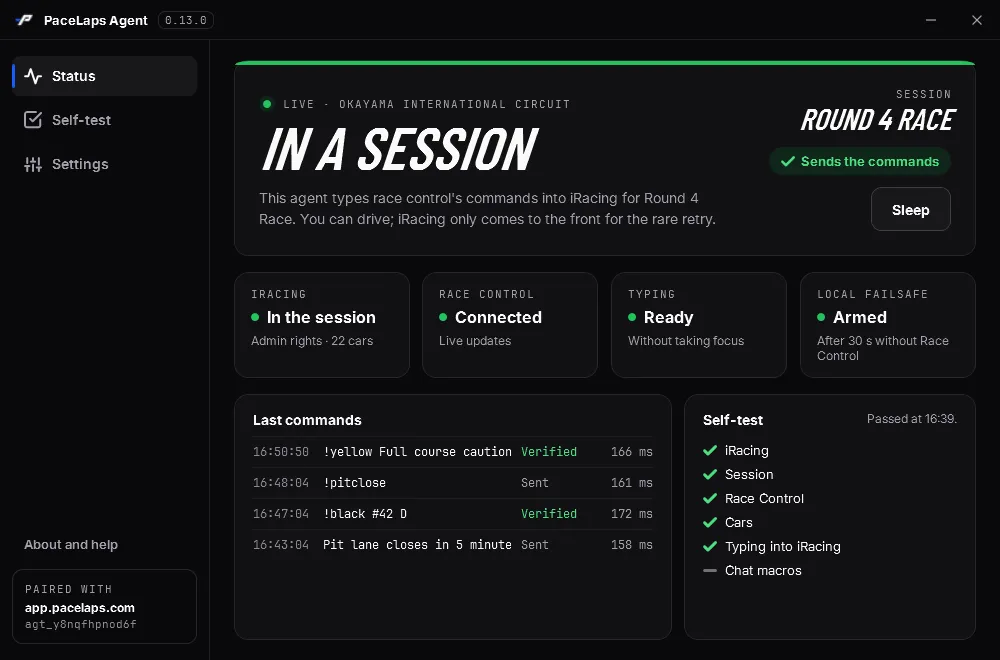
The status screen shows what’s going on: iRacing, Race Control, typing and the local failsafe, the last commands with their result, and the last self-test. If the self-test fails, the Self-test screen names the step and why.
Without admin rights (as a spectator), the agent is view only: it never sends commands, but stewards can play incident replays on it.
Notifications come as small windows at the bottom right of the screen iRacing is on. They never take the focus from the sim; a click opens the agent. In exclusive fullscreen, iRacing hides them.
Settings
In the window, Settings. Changes apply at the next Activate.
- Start with Windows: off by default. It starts asleep.
- Look for updates: once a day the agent looks on downloads.pacelaps.com for a new version. It sends nothing about you.
- Type without bringing iRacing to the front: on by default. Turn it off only if commands stop arriving.
- League id: only for hosted sessions outside a league.
- Local failsafe: off by default. Turn it on only if your league asks. It also starts when only your own connection is down. A steward ends it in race control.
- Chat macros: optional. Enter the slot texts exactly as in iRacing.
When something is wrong
- Open the window: the status screen says what’s wrong and what to do.
- The icon’s menu, Open the log folder: send the newest
agent-*.logif asked. Logs contain no passwords or tokens. - Can’t reach Race Control: nothing to do. What happens in the race is sent once it’s back.
More checks in Troubleshooting. Still stuck? Write to support@pacelaps.com.
Update
When a new version is out, a notification says so and the icon’s menu shows Update available; it opens the download page with what’s new. To update: Sleep, exit the agent (the icon’s menu), replace pacelaps-agent.exe, start it again. Pairing and settings stay.
Remove
- Turn off Start with Windows in the settings.
- Exit the agent and delete its folder.
- To remove pairing, settings and logs, delete
%LOCALAPPDATA%\PaceLaps\Agent. - Revoke the agent in Race Control: account menu, Agents.