Docs / Race Control
Getting started
Register your league, invite your stewards, connect an agent and get your drivers in.
The basics take minutes: register your league, pair the agent, open a session. For a big event, set up your procedures and rehearse in a private session days before (first race checklist).
You need:
- A Discord account for every steward. Race Control stores only your Discord id and name.
- iRacing session admin rights on the PC that runs the agent.
- Your iRacing league id. It’s in the address of your league’s page on the iRacing website.
1. Register your league
- Open Race Control and sign in with Discord.
- Choose Register a league, enter the league id, a name and your registration code, and press Register. PaceLaps is in a closed beta: ask support@pacelaps.com for a code.
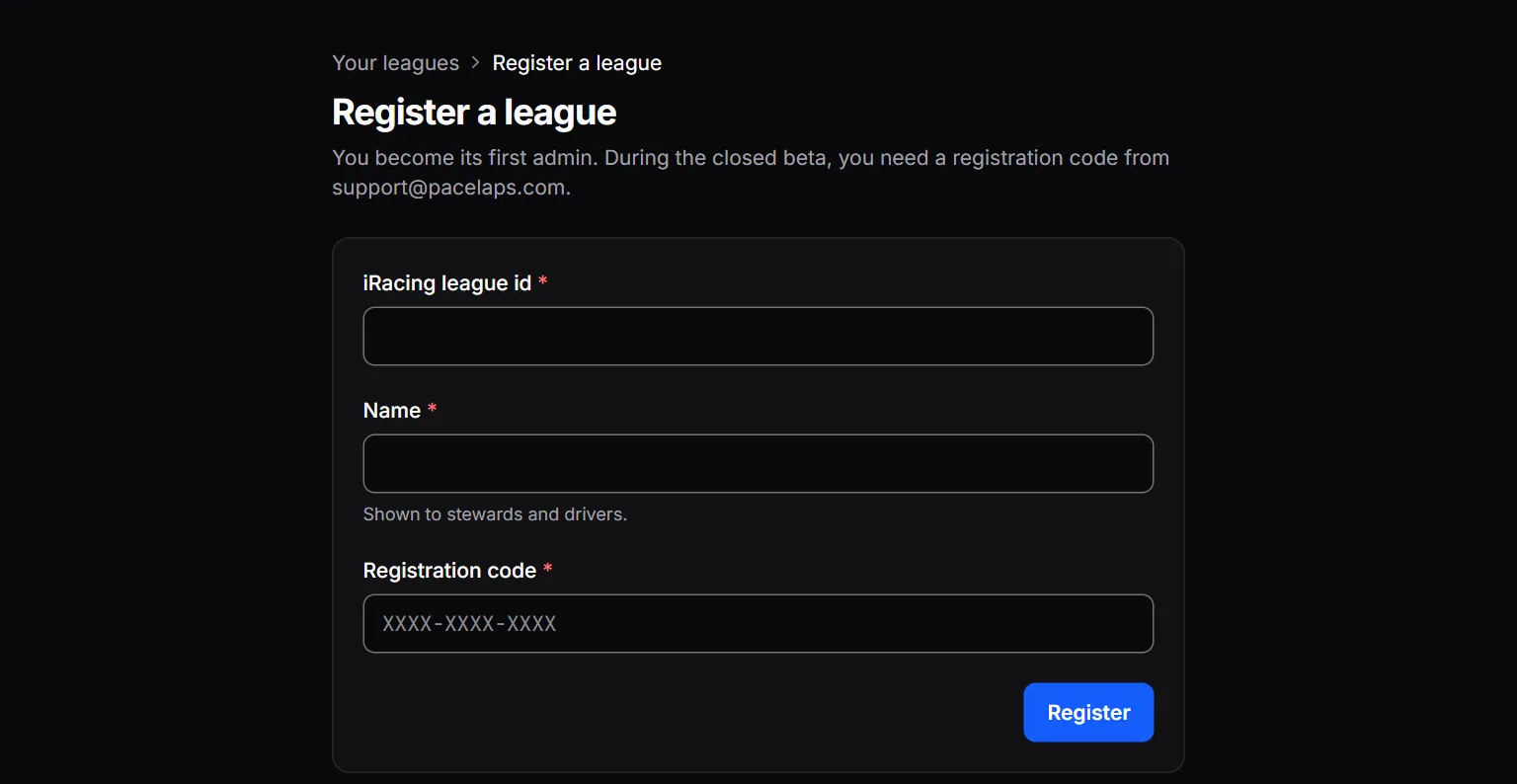
You are now the league’s first league admin. League admins manage members, settings, procedures and the penalty catalog. Stewards run race control.
Each iRacing league id can be registered once, so please only register leagues you run. If someone registered yours, write to support@pacelaps.com.
2. Invite your stewards
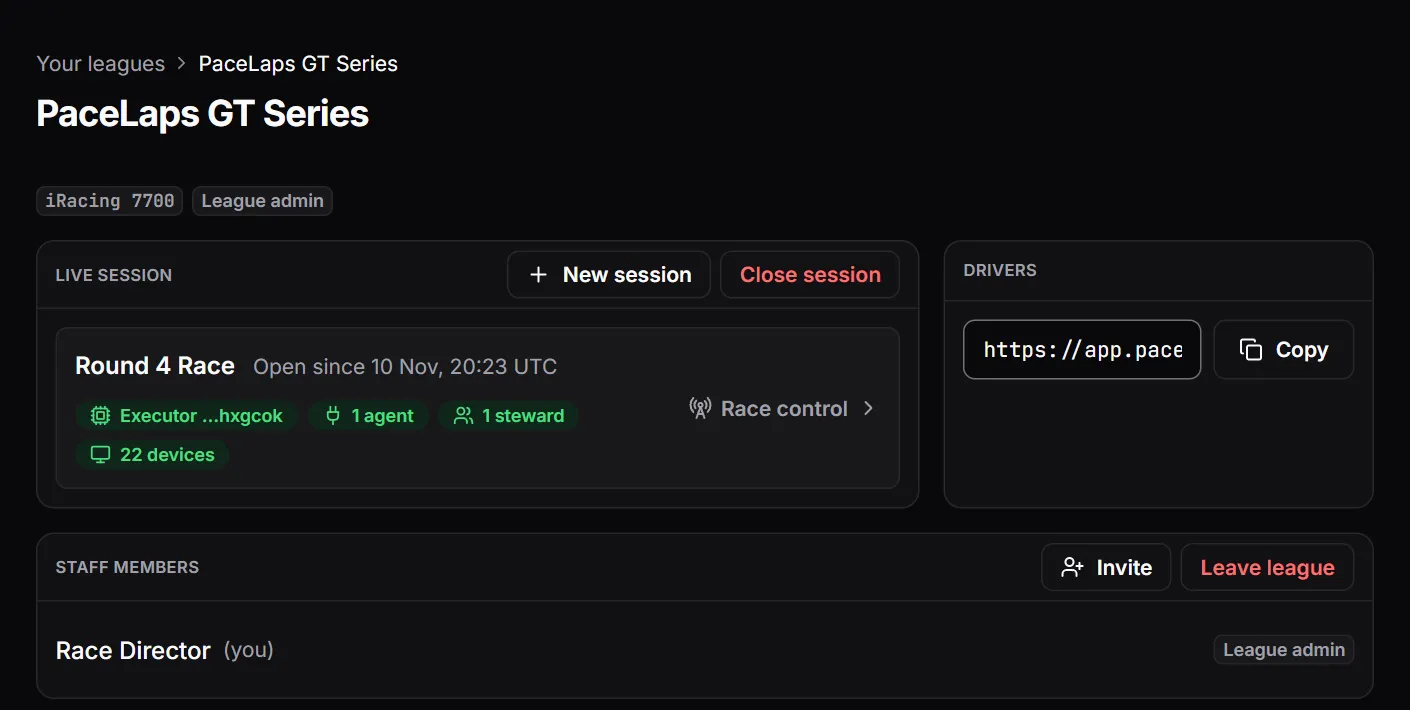
On the league’s overview, under Staff members, choose Invite. The code is shown only once, and you can give it an expiry and a use limit. Stewards sign in, choose Join a league and enter the league id and the code.
3. Procedures and penalties
- Set up your procedures: copy a template, build your own or import JSON.
- Fill the penalty catalog, one by one or as a JSON import.
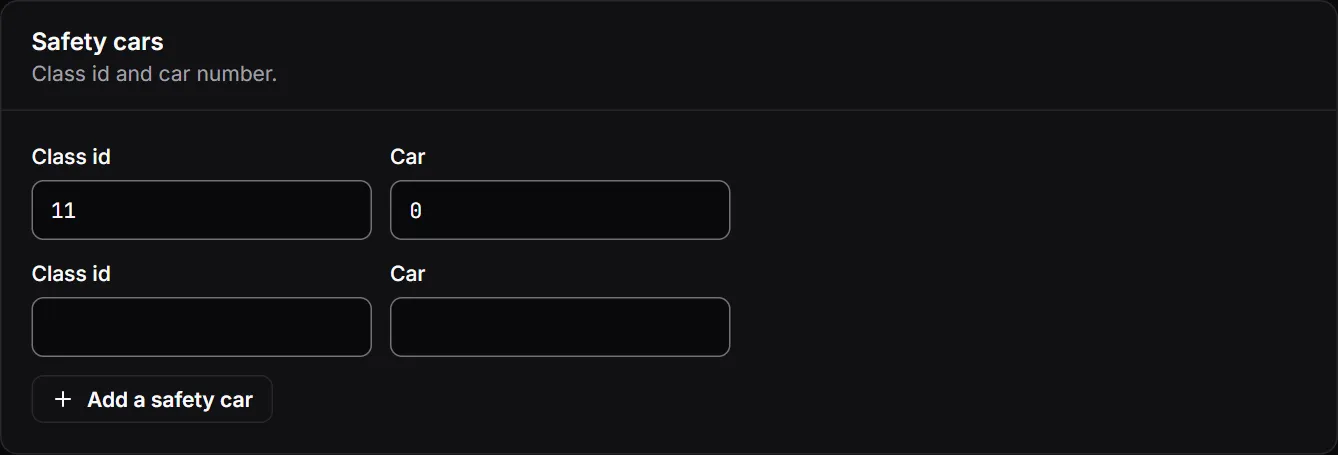
- In Settings, enter your safety cars (class id and car number; the Roster page’s Classes card shows each class’s id once an agent has seen the session), choose a failsafe and the iRacing commands procedures may use.
4. Connect an agent
Download the agent on the PC of someone with admin rights in the session, and pair it with your steward account once (agent guide): the agent shows a code, you enter it on the Agents page.
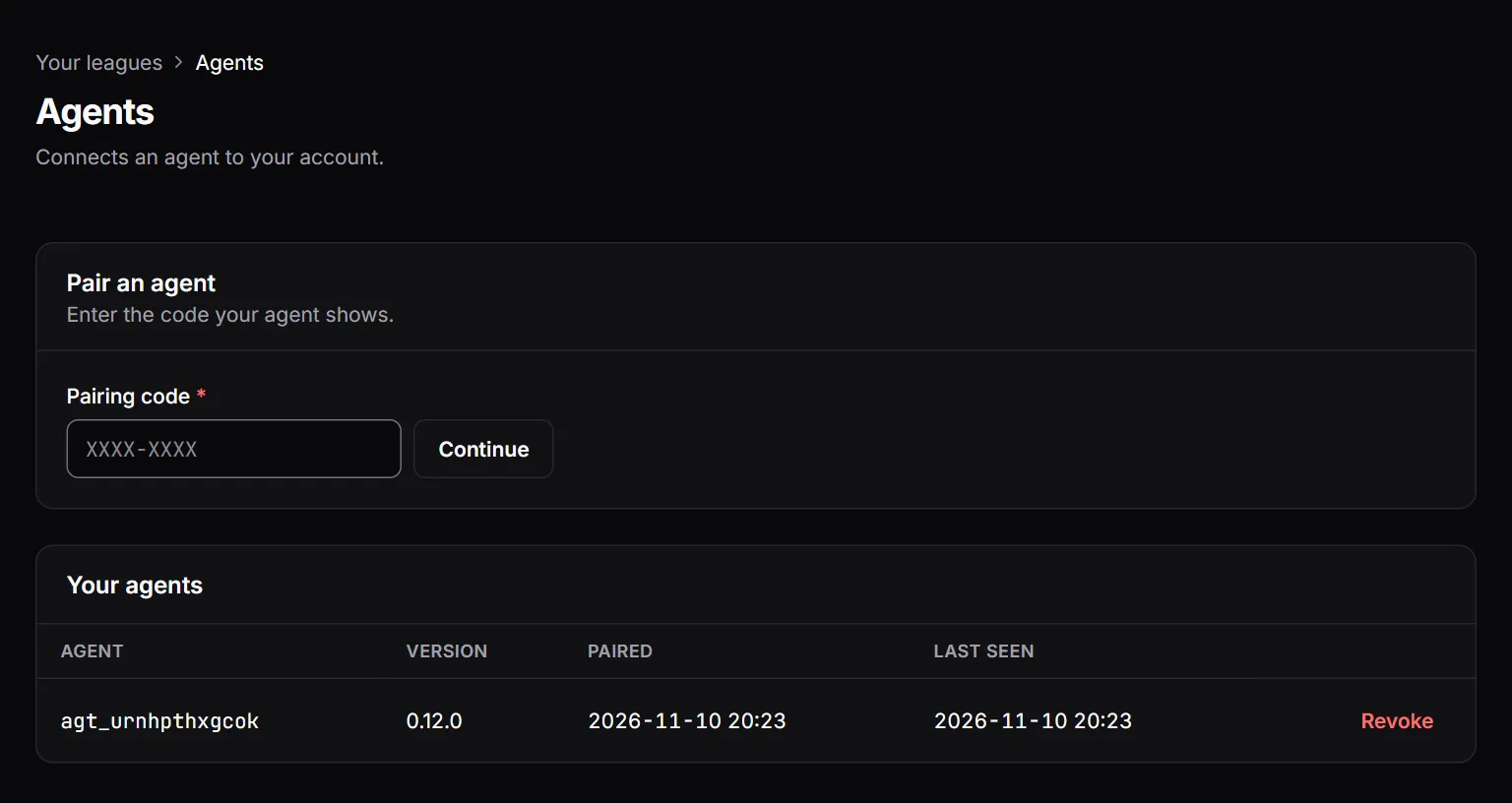
Run two or three agents if you can: when the one sending commands (the executor) drops out, another takes over.
One agent works too. Calls to drivers need no agent at all; everything to and from iRacing does, like the running order, incidents, cautions and black flags. If your only agent drops out, your failsafe procedure starts after a countdown.
5. Get your drivers in
On the overview, under Drivers, copy the driver join link and post it in your Discord. Drivers join with their car number, their iRacing customer id, or as a spectator (driver guide).
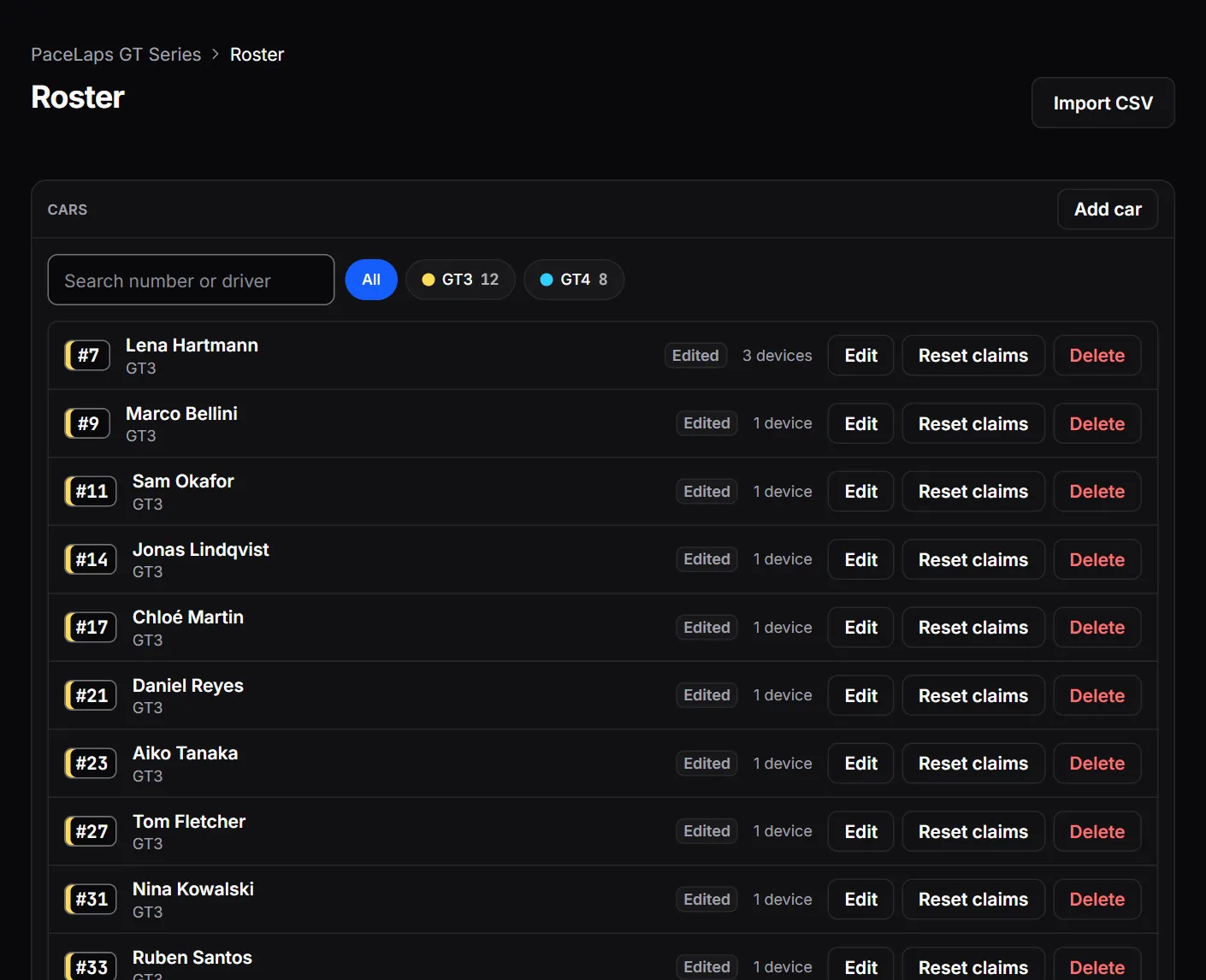
The Roster page lists your drivers with car numbers and classes. Agents fill it from the session, or you import a CSV.
6. Race day
- League sessions: Race Control opens the session itself as soon as an activated agent of one of your stewards is in it. If a session was opened by hand before, the agent takes it over.
- Hosted sessions: a steward opens it first on the overview with New session. Agent operators enter the league id in the agent’s settings, and the agents join it.
- A session left open from an earlier race blocks the new league session: the agents stay ready until a steward closes the old one on the overview with Close session.
The Live session card on the overview shows whether agents, stewards and drivers’ screens are ready. Then open race control (steward guide).